Right off the rip, I think it’s important to mention that the official Holodeck documentation is very good and worth reading top-to-bottom.
https://vmware.github.io/Holodeck/latest/
The focus of this post will be to demonstrate how I deploy and use Holodeck in my own lab. I’ll walk through the deployment process that I use on my single host environment and share some tips along the way.
One of the Holodeck value props is to simply destroy and rebuild everything on a whim, so we should take steps to make that as easy as possible. I’ll cover the steps I’ve taken to enable rapid reusability. I’ll also highlight a few extra steps I’ve taken to jailbreak my Holodeck instance from the Holorouter webtop bubble and improve the tools usefulness tenfold.
Getting started
I always keep the required files on hand for quick redeployment. I can redeploy everything from these in short order if neeed. They are:
- Holorouter: holorouter-9.1.0.0912.ova
- ESX: VMware-VMvisor-Installer-9.1.0.0.25370933.x86_64.iso
- VCF Installer: VCF-SDDC-Manager-Appliance-9.1.0.0.25371088.ova
Important: These must be the base 9.1.0.0 files – not a subsequent maintenance release or the deployment will fail.
Deploy Holorouter
My recommendation is keep the Holorouter OVA stored in a vCenter content library for quick redeployment access. I have a DNS record and IP address assigned to Holorouter that I can reuse – this is important for other reasons, too; read on.
I have a distributed switch with two port groups: Management and Holodeck. The Holorouter VM Management Network gets connected to VM Network and Trunk Portgroup for Site A/B gets connected to the Holodeck port group.
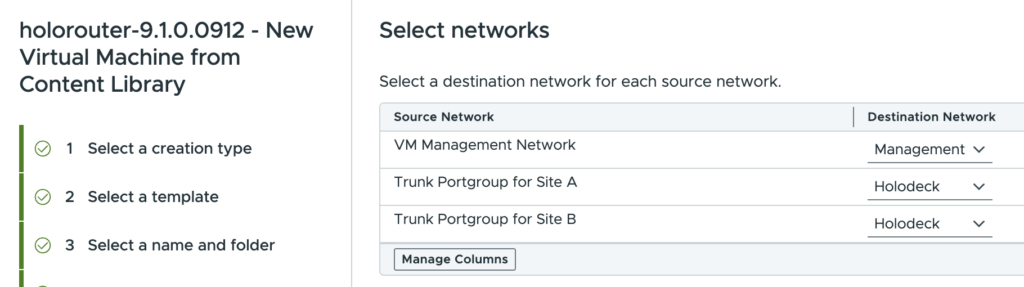
I see a few things misconfigured here frequently:
- These port groups cannot be split across a standard switch and distributed switch.
- VM Management Network is where the Holorouter static IP is assigned and it’s how you connect into the nested environment. Get it wrong and you will not be able to access anything.
- Make sure sure the Holodeck port group is set to VLAN trunking.
- Make sure the Holodeck port group security configuration follows documentation.
- Make sure the distributed switch MTU is set to 9000.
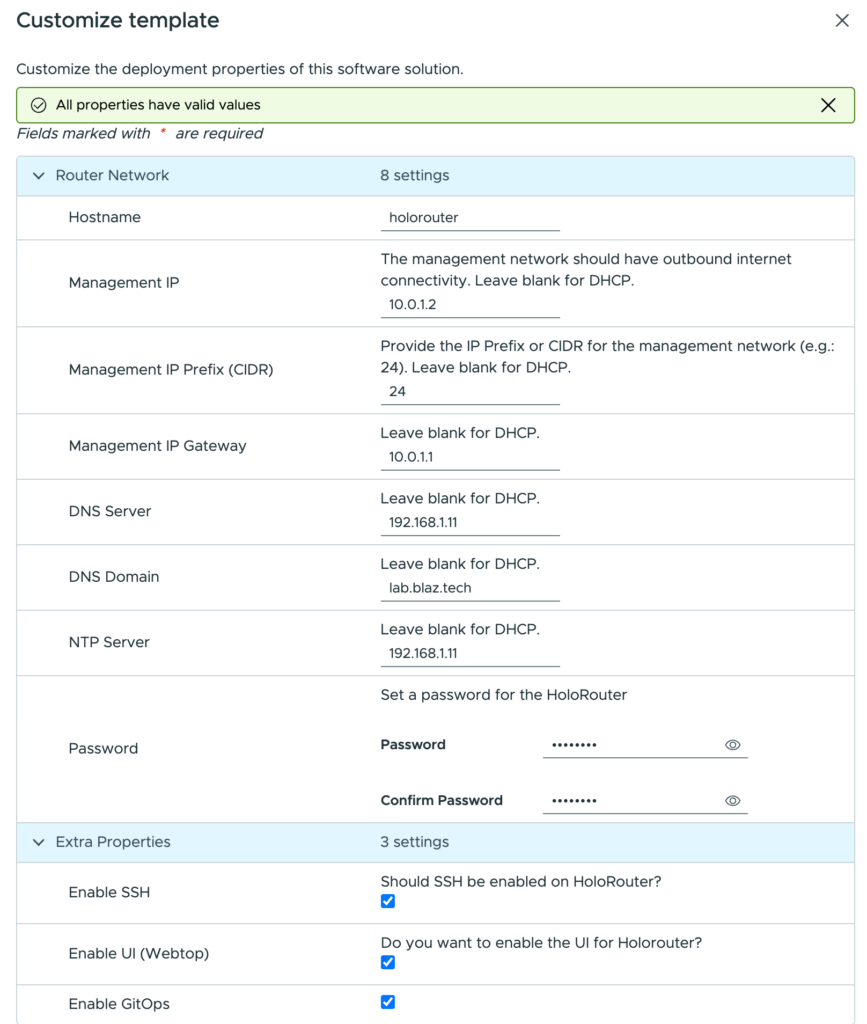
Here’s my full Holorouter customization template configuration.
Stage software to Holorouter
I just keep these commands in a note. Simply and easy. These are the first commands I run after deployment before even connecting via SSH.
Copy ESX Installer ISO from laptop to Holorouter:
scp /Users/cblaz/Documents/Holodeck/VMware-VMvisor-Installer-9.1.0.0.25370933.x86_64.iso root@holorouter.lab.blaz.tech:/holodeck-runtime/bin/9.1.0.0/
Copy the VCF Installer OVA from laptop to Holorouter:
scp /Users/cblaz/Documents/Holodeck/VCF-SDDC-Manager-Appliance-9.1.0.0.25371088.ova root@holorouter.lab.blaz.tech:/holodeck-runtime/bin/9.1.0.0/
Run Holodeck deployment
SSH into Holorouter and open Powershell.
Create Holodeck config:
New-HoloDeckConfig -Description 0723a -TargetHost vc01.lab.blaz.tech -UserName administrator@vsphere.local -Password VMware1!
I set the Description to the date followed by a letter. I can easily track when the instance was deployed and iterate deployments if something goes wrong. Expect to iterate many times while getting your feet under yourself.
Deploy Holodeck instance:
New-HoloDeckInstance -Version 9.1.0.0 -InstanceID 0723a -ManagementOnly -vSANMode ESA -DepotType Offline -CIDR 172.16.0.0/20
The parameters used here can vary depending on what I want to test. The key here is the subnet that I’m deploying with and that it doesn’t overlap with any other subnets – more later. I’m also only creating a single site to save on resources.
Note that Holodeck will recognize or deploy to a datastore cluster, but you can choose the datastore member and storage DRS will keep things balanced, even if the deployment complains that the datastore doesn’t have enough space.
Monitoring deployment
Deployment will take several hours and many more if I’ve added more components to deploy. This task is best left to complete overnight once the kinks are ironed out.
That said, while getting your feet under you, a good tip is to actually run the New-HoloDeckInstance command from the webtop terminal. The terminal SSH session will continue to run and output progress if your workstation goes to sleep. If my terminal window closes it’s still okay, I can monitor progress a few ways.
The Holorouter /holodeck-runtime/logs directory has the running log files. Reading and refreshing them makes it easy to check on the overall instance progress.

If anything fails, I correct the issue and restart New-HoloDeckInstance command. The deployment will figure out where it left off and attempt to continue – this is actually a really slick feature.
Better yet, I can access the webtop desktop via via http://10.0.1.2:30000/. The desktop environment web browser has bookmarks and saved credentials for everything I need, including VCF Installer. Here I can closely monitor the deployment progress.
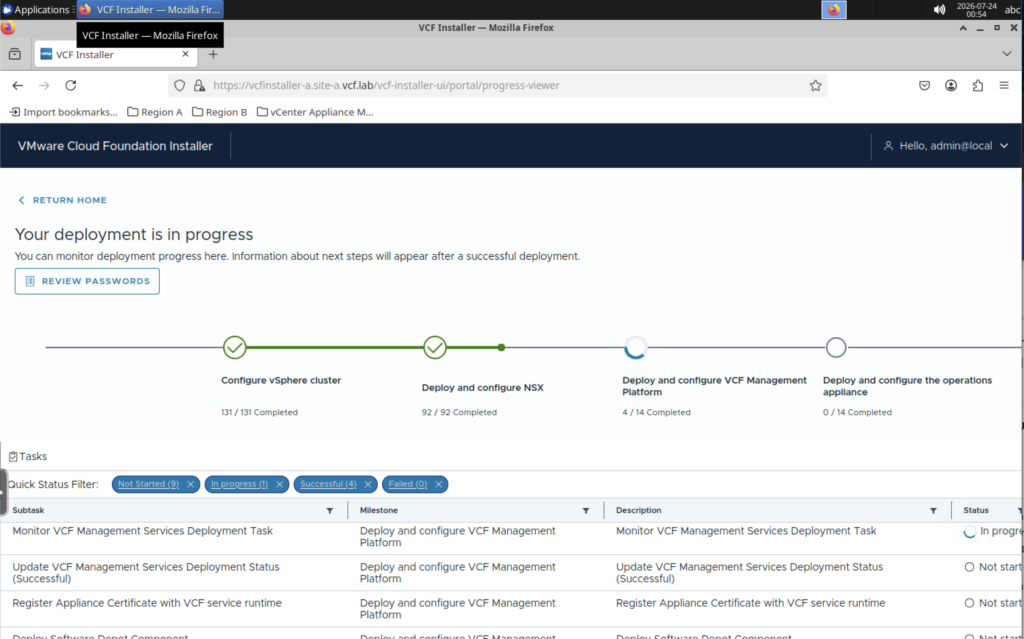
After spending any short period stuck inside a VNC session inside of a browser tab, you will quickly find yourself feeling confined and want out. If only you could just access the environment directly from your workstation? You can. The environment is technically accessible, you just need to give your workstation directions to find it.
Jailbreak from webtop
I “jailbreak” from the nested VCF environment webtop desktop by setting up DNS zone forwarding on my internal DNS for the Holodeck instance domains, then create a static route on my router so my workstation knows how to reach them. These will continue to work as long as I redeploy with the same configuration each time.
DNS zone forwarding
By default, New-HoloDeckInstance will using the DNS domain: vcf.lab and site-a.vcf.lab for site A – that’s fine for me. Adding a second site would just require duplicating the effort for it’s subnet and domain.
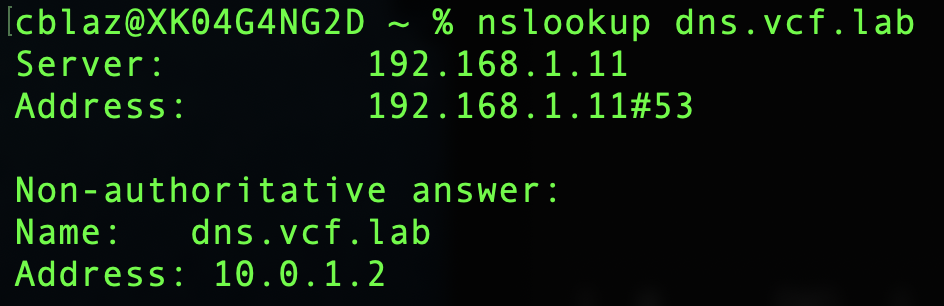
I use Technitium DNS for internal DNS and created a forwarder zone for each domain, pointing to the Holodeck management IP, i.e. this is where you can resolve the hostnames for the Holodeck instance.
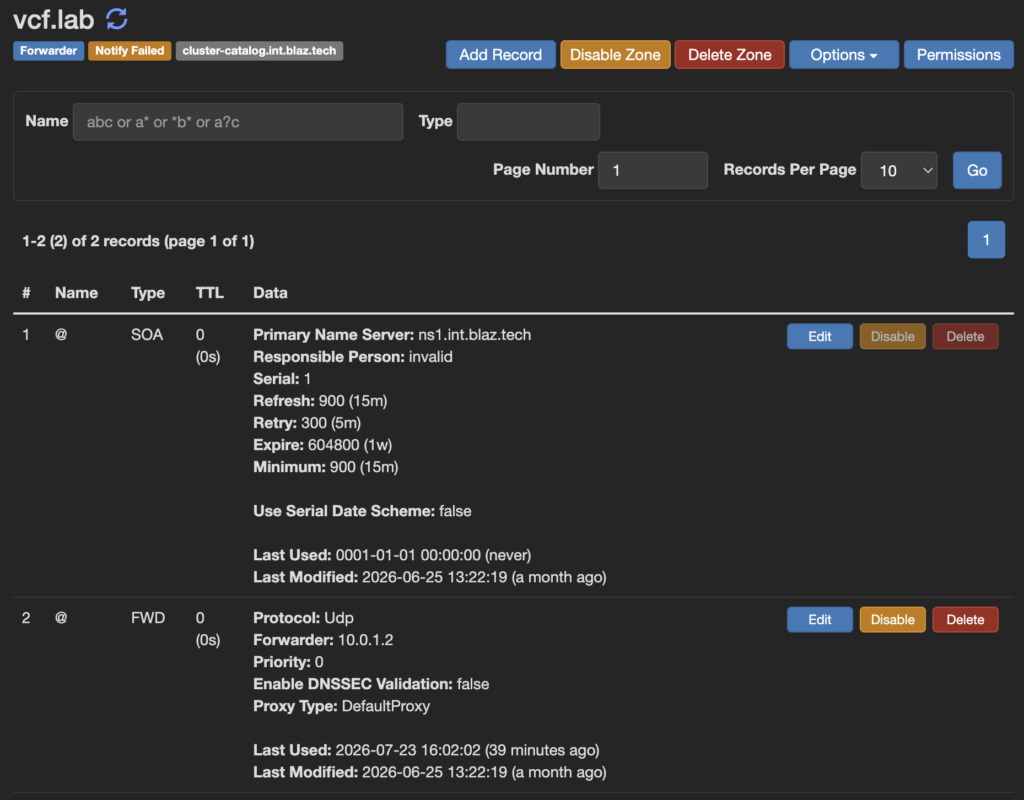
Anything on my internal network can now resolve the Holodeck instance hostnames.
Static route
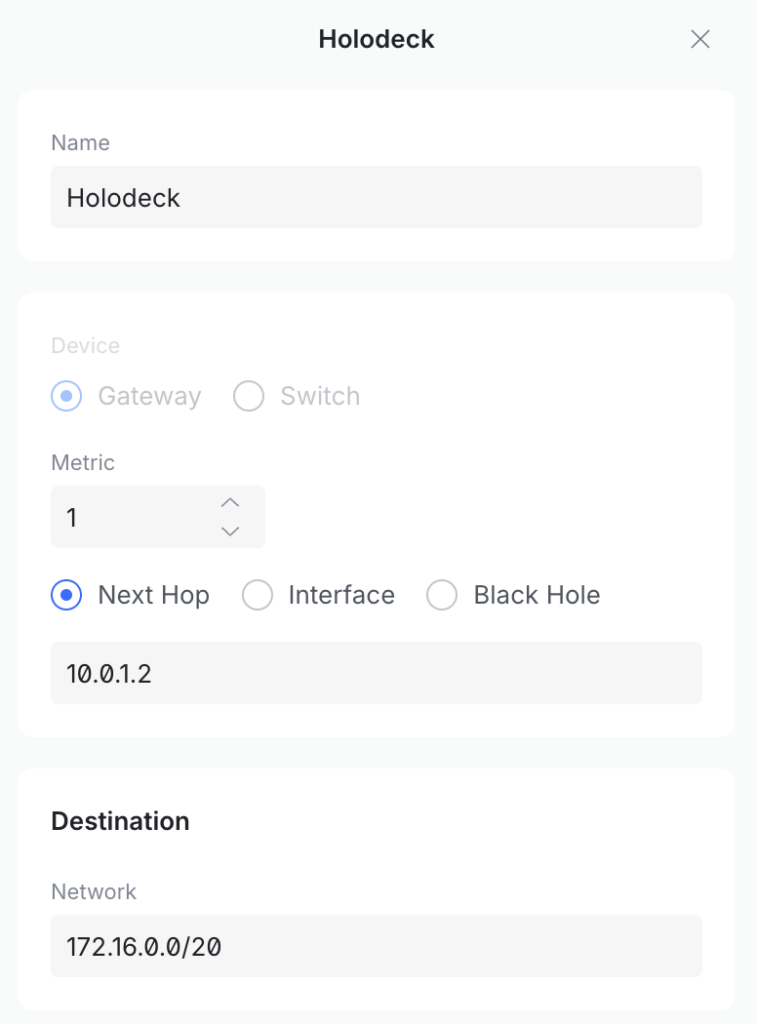
I can resolve hostnames for the Holodeck instance, now I need a network route to get to them. To do this, I created a static route on my router (Ubiquiti Dream Machine) that says that the Holodeck instance subnet 172.16.0.0/20 (remember from above?) can be reached via the Holorouter Management IP address.
Putting it all together
I’ve effectively enabled my workstation (or anything on my network) to locate and reach the Holodeck instance services. For example, the management domain vCenter: https://vc-mgmt-a.site-a.vcf.lab/.
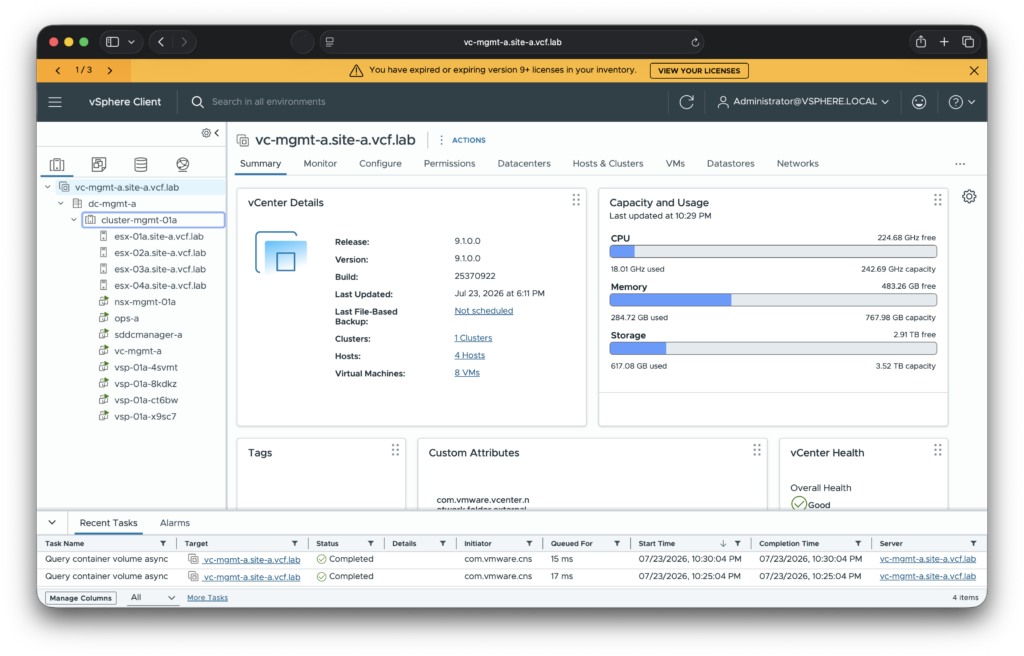
I can cross reference documentation, bookmark anything inside the nested environment (VCF Installer, VCF Operations, vCenter, etc.), save credentials, and access it directly from my browser without being confined inside webtop. Additionally, either when I inevitably break something or the 90 day trial licenses expire, I can still quickly redeploy and access a fresh VCF environment. The instance will get rebuilt using the using the same configuration.
Jailbreaking from the Holorouter webtop elevates a useful tool to tinker with into a fully functional sandbox. I like to refer to it as Hands on Labs+.
Content created with care for human consumption using organic processes ❤️
2 replies on “My VCF 9.1 Holodeck Deployment and Webtop Jailbreak Process”
Other than the static route, did you have to configure anything on your Ubiquiti switch and router?
Nope, that’s all.