I’m documenting here the steps I took to deploy the bare minimum requirements to run workloads with VCF on my Dell T7920.
System Specs
Dell T7920
CPU: 2x Intel Xeon 6262V
RAM: 768GB RAM
Boot Drive: 512 GB NVMe
Storage: 8x 2TB NVMe, 128GB SSD
This can be done with less. I just happened to have built this machine with an eBay seller prior to prices increasing, when NVMe drives were as affordable as they ever were.
Required Files
This is the catch, right?
Paying for a VMUG Advantage Membership is the easiest path. Eric Nielsen wrote a post on the VMware {code} blog explaining the processes.
Here’s direct links to the downloads once you have access:
ESX ISO: VMware-VMvisor-Installer-9.1.0.0.25370933.x86_64.iso
vCenter ISO: VMware-VCSA-all-9.1.0.0.25370922.iso
Operations OVA: Operations-Appliance-9.1.0.0.25346025.ova
License Server OVA: Vcf-License-Server-9.1.0.0.25346031.ova
Install ESX 9.1
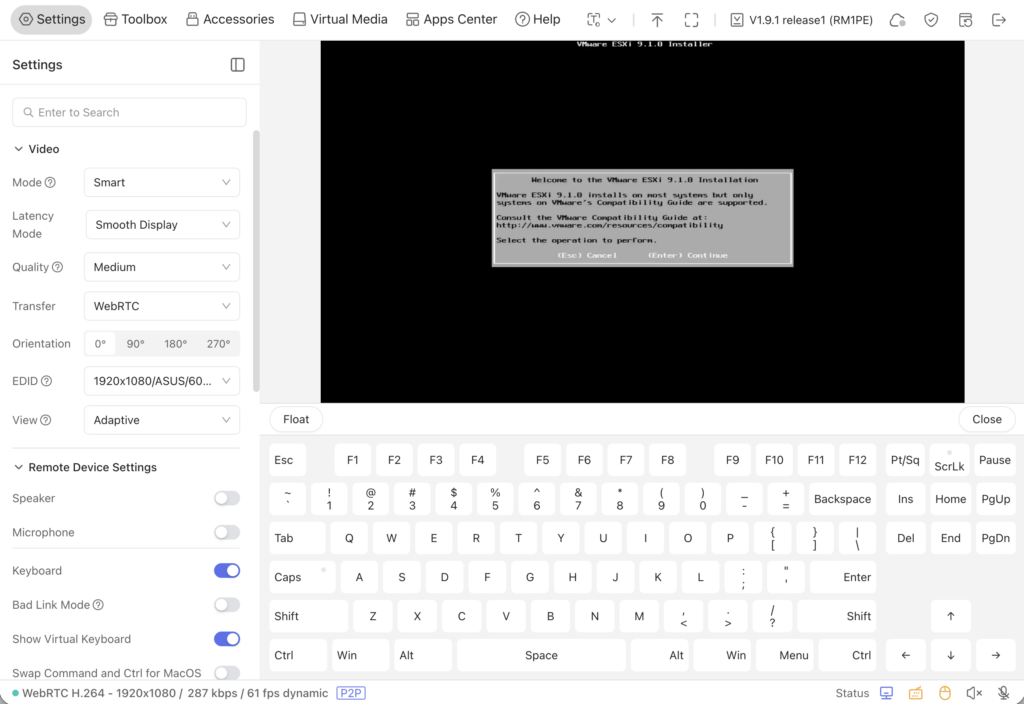
There are of course many ways to install ESX 9.1, but today I’m using a GL.iNet Comet POE KVM. It works perfectly for a single host and saves me trips to the basement. Upload the installer .iso and virtually mount it.
I already have a DNS record setup and IP reserved, along with NTP. I’m using a single onboard 1GbE NIC for the management interface, connected to a management VLAN.
Deploy vCenter 9.1
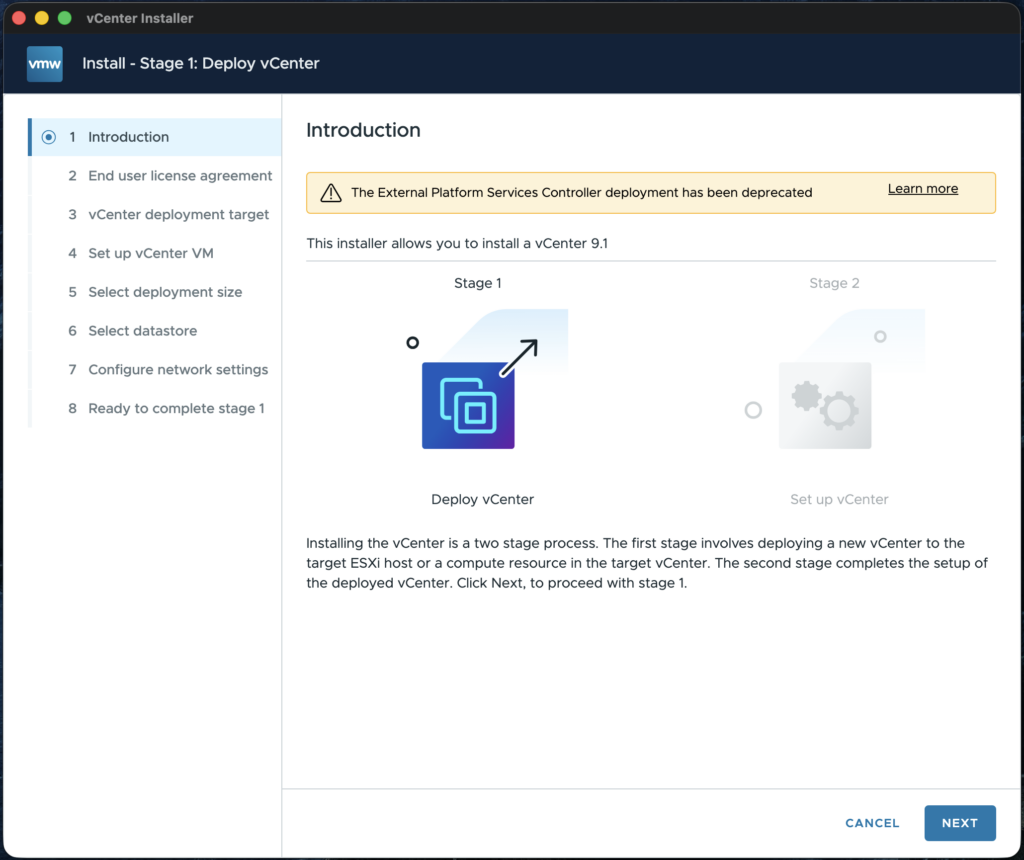
vCenter deployment is standard deploy procedures from .iso. Again, I have DNS record configured and an IP on my management VLAN reserved.
The host needs added to the vCenter once the deployment is complete.
Deploy VCF Operations 9.1
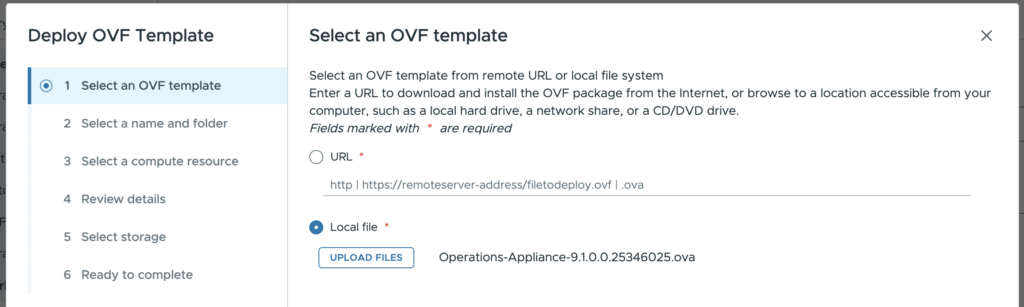
Next, I deployed the Operations appliance via OVA using the Small configuration. Again, I have a DNS record and IP assigned.
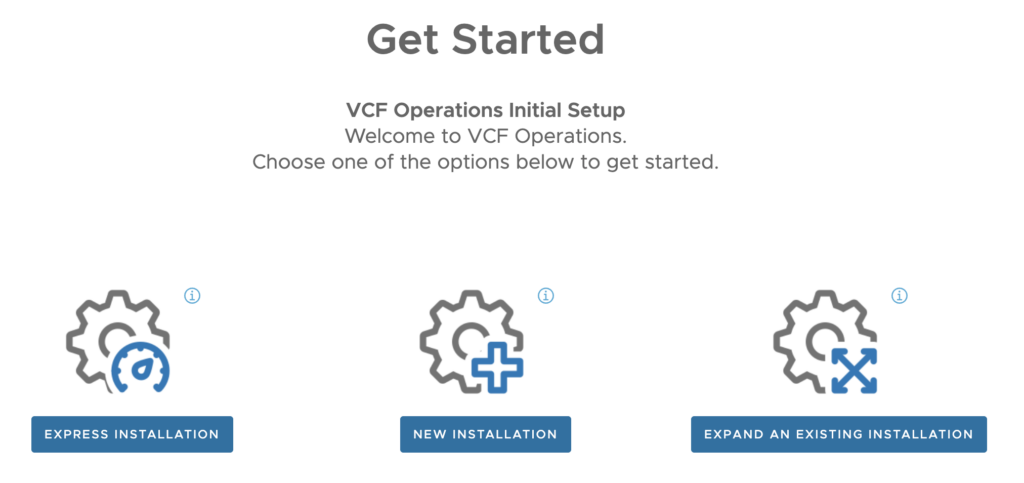
Once deployed, I opened the web UI using the FQDN and used the Express Installation.
Deploy VCF License Server 9.1
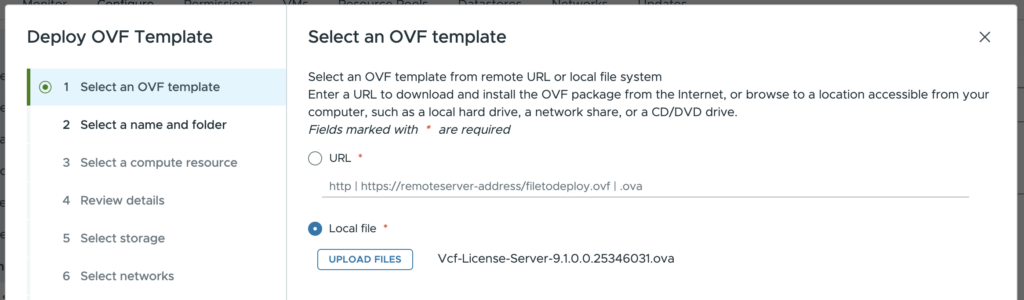
This is another standard OVA deploy, but first we have to begin the Add License Server wizard in Operations to grab the unique registration key.
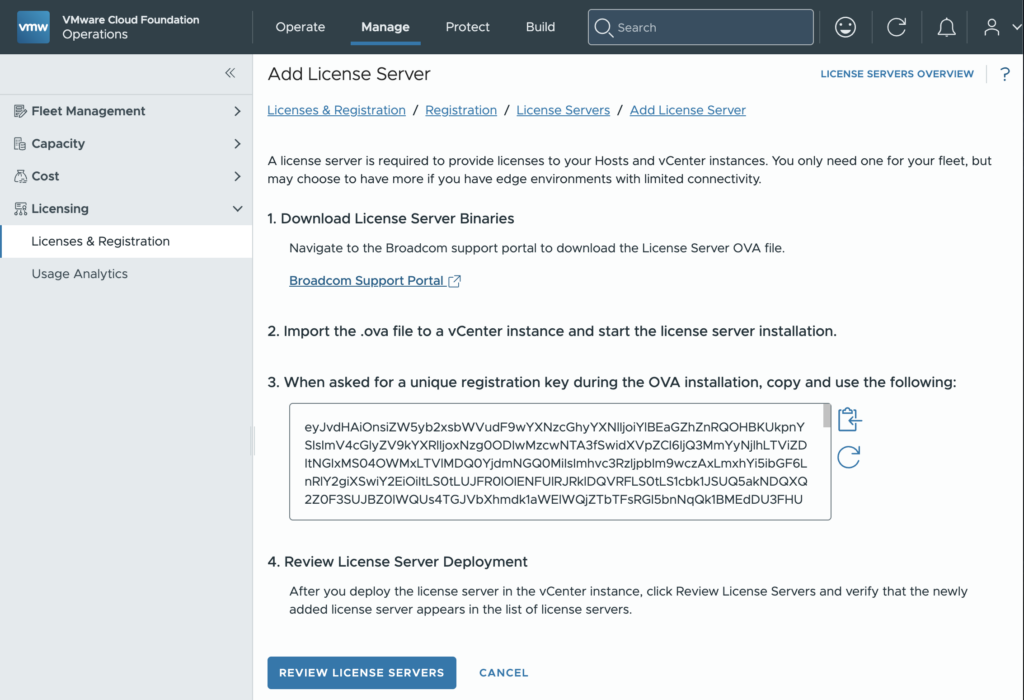
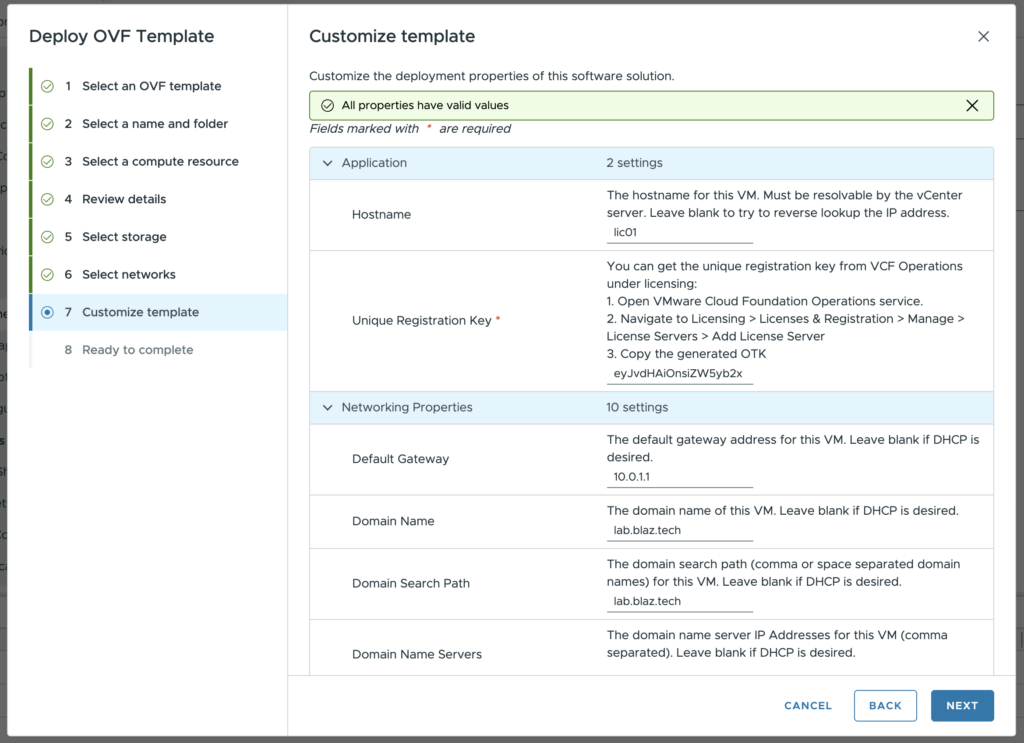
And paste into Unique Registration Key on the template customization screen the complete the deployment.
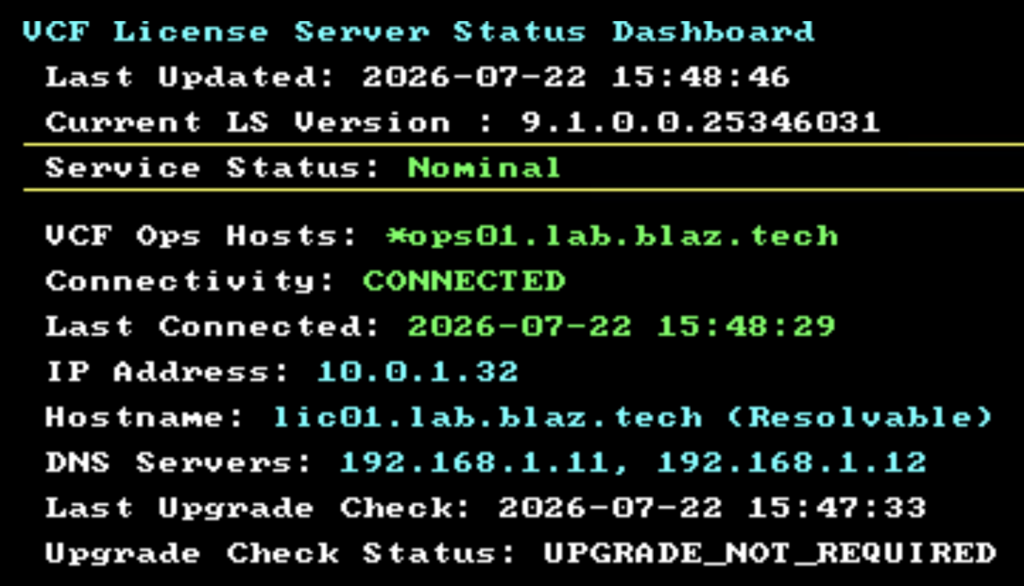
I then registered the license server using the guided workflow in Operations. This is what the license server console will show after it’s successfully configured.
The next step is adding the vCenter to Operations so the licenses can be pushed.
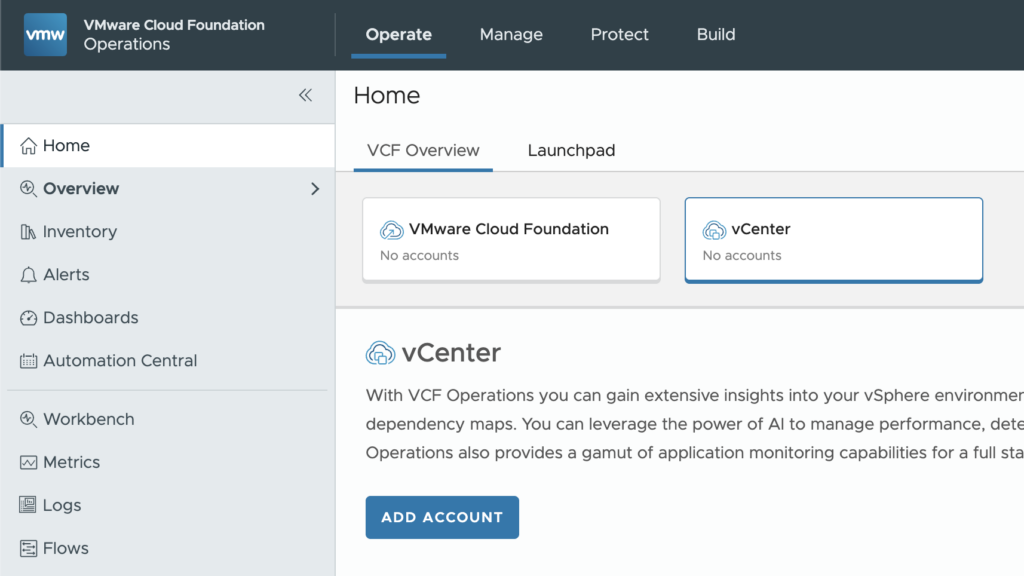
Ensure to start collection after adding the vCenter and the last step is to add licensing to the vCenter.
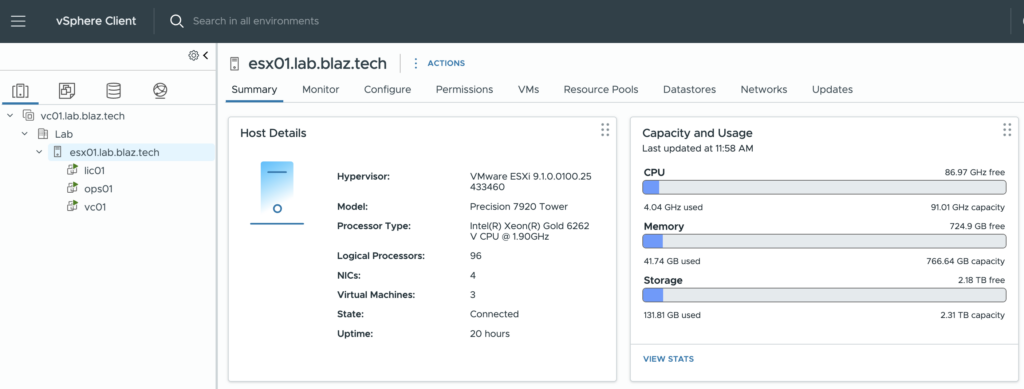
The host is licensed and ready to go.
Content created with care for human consumption using organic processes ❤️
One reply on “Minimal VCF 9.1 Lab Build on a Single Host”
[…] and use Holodeck in my own lab. I’ll walk through the deployment process that I use on my single host environment and share some tips along the […]