If you’ve spent any time managing firewall rules, you already know that chasing down dynamic IP addresses of modern web services is impossible. Fortunately, NSX offers layer 7 context profiles, allowing you to drop traffic based on domain name (FQDN) by inspecting the TLS SNI or the plaintext HTTP host header. It’s a great way to enforce basic web filtering.
If you’re unfamiliar with how to configure FQDN filtering, check out this vGarethLewis blog post.
There’s a catch once you dig in and attempt to manage this in production at scale: The moment you want to block 183 domains, you’ll quickly find that the process is administratively cumbersome and unrealistic to manage by hand. In this post, we are going to look at how you can leverage a custom PowerShell script to automate bulk FQDN updates in seconds.
A quick note to manage expectations of this feature: This is a firewall control and not proxy. If all you need is layer 7 FQDN blocking – this is perfect for you. Otherwise, be aware that this will not provide:
- Path-level filtering, i.e.
domain.com/path - HTTPS payload decryption
- Data Loss Prevention (DLP)
- Block pages
Scripting Challenge
There’s a two step process that needs scripted:
- Register FQDNs – The FQDNs need to first be added to NSX.
- Bind FQDNs to a Context Profile – The FQDNs need bound with the profile.
These API calls can be made from a REST API client individually, but scripting is required to utilize them in bulk management actions – I’ll demonstrate.
Register FQDNs
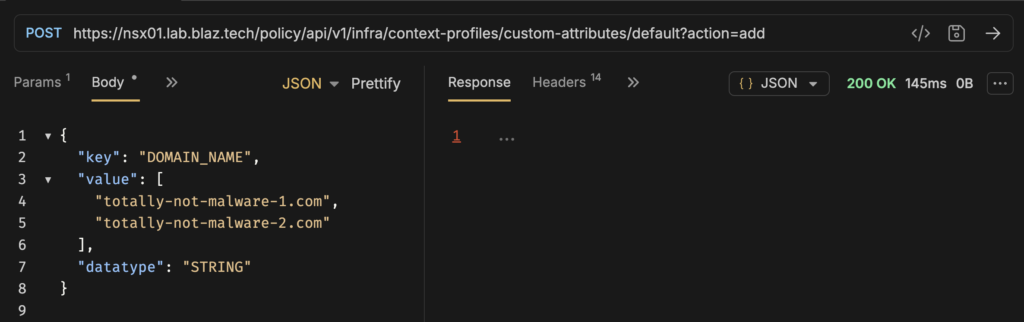
To push a list of FQDNs and register them, we need to send a POST request to the Custom Attributes API endpoint, appending the ?action=add query parameter so NSX knows we are appending net-new domains rather than deleting them.
POST https://<policy-mgr>/policy/api/v1/infra/context-profiles/custom-attributes/default?action=add
Payload body example:
{
  "key": "DOMAIN_NAME",
  "value": [
    "totally-not-malware-1.com",
    "totally-not-malware-2.com"
  ],
  "datatype": "STRING"
}
Here’s some behavior of this API endpoint to be aware of. You will get a error_code: 521029 if you POST a FQDN that’s already been registered – even if you your list contains FQDNs that haven’t been registered.
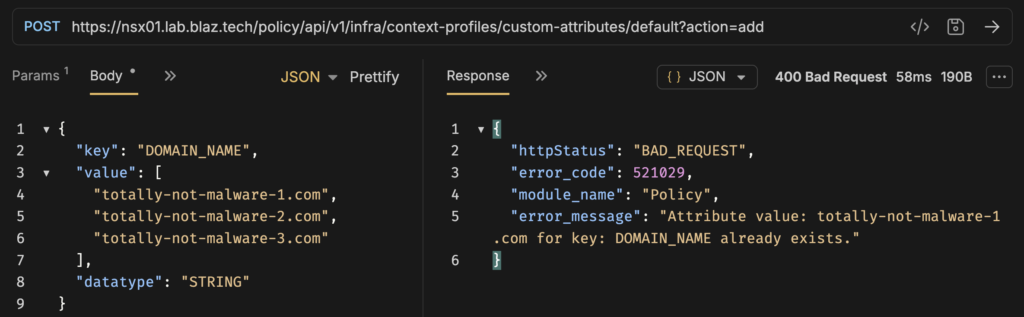
You’ll encounter this same challenge if you attempt to import an CSV in the NSX Manager UI.
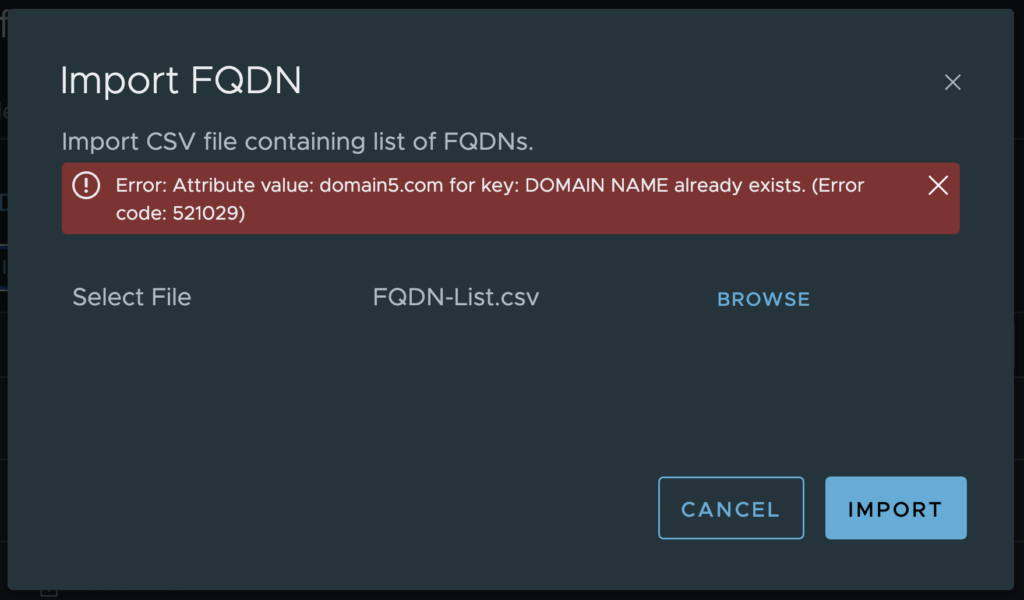
Error: Attribute value: domain.com for key: DOMAIN NAME already exists. (Error code: 521029).
We can work around this in PowerShell by sending a POST for one FQDN at a time and handling the specific error.
Bind FQDNs to a Context Profile
We can work on binding the FQDNs to a Context Profile now that they’ve been registered. A good place to start is to send a GET request to the Context Profiles API endpoint to retrieve the display name and ID. Obviously, the display name is visible in the UI, but you’ll not find the ID and it can differ from the display name.
GET https://<policy-mgr>/policy/api/v1/infra/context-profiles
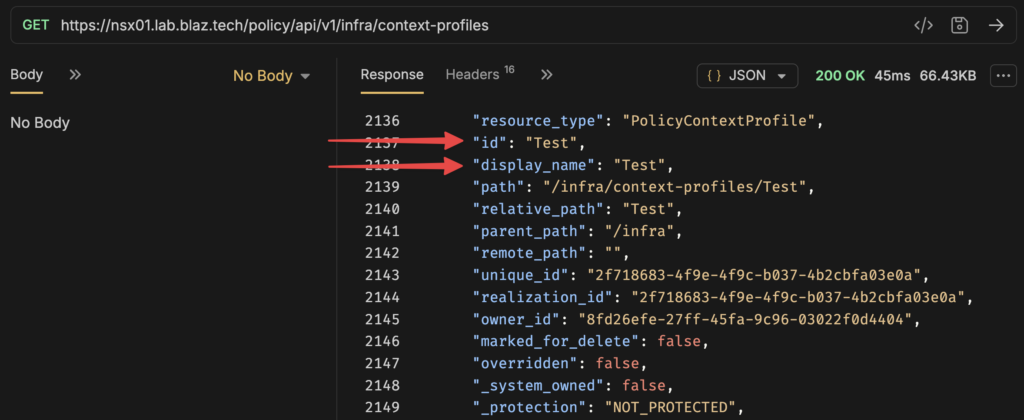
Next, we can send a PATCH to the Context Profiles API endpoint to bind FQDNs in bulk.
PATCH https://<policy-mgr>/policy/api/v1/infra/context-profiles/testPolicyContextProfile
Payload body example, use the id and display_name from the GET context-profiles output:
{
  "resource_type": "PolicyContextProfile",
  "id": "Test",
  "display_name": "Test",
  "attributes": [
    {
      "key": "DOMAIN_NAME",
      "datatype": "STRING",
      "value": [
        "totally-not-malware-1.com",
        "totally-not-malware-2.com"
      ]
    }
  ]
}
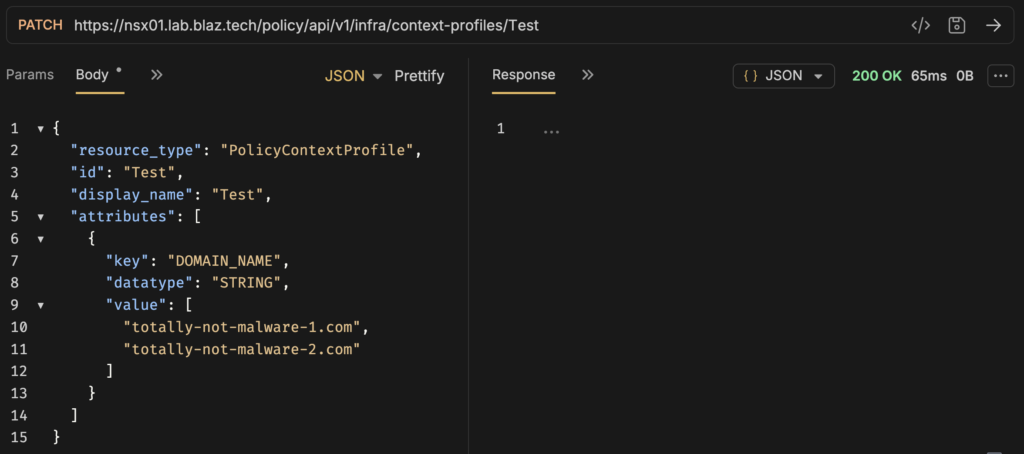
The challenge with this method and managing a list at scale over time is that it will completely replace the Context Profile bound FQDNs. You either need to PATCH a fully complete list or use PowerShell to assist in merging changes, which I have done.
Putting it all together
Now that the core challenges are understood, I passed this information to Gemini and prompted it to create a menu based PowerShell script to:
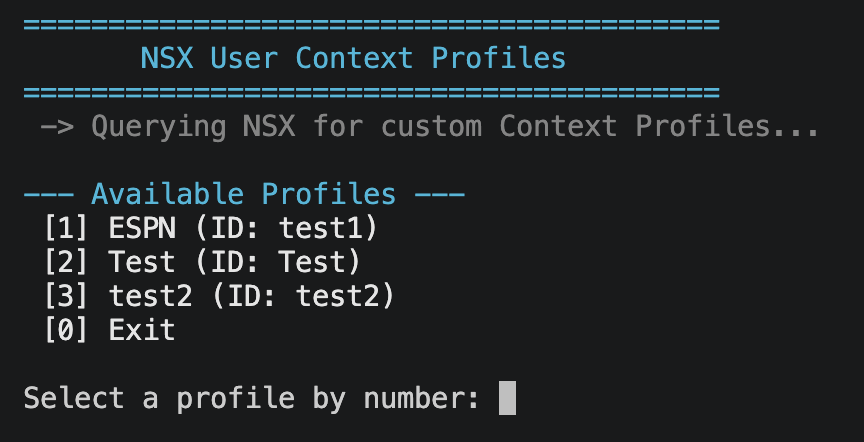
- Connect to NSX Manager and list the user created Context Profiles to select from.
- Provide the following actions for the selected Context Profile: List active FQDNs, Export FQDNs to CSV, Add FQDNs, Remove FQDNS, and Sync FQDNs with CSV.
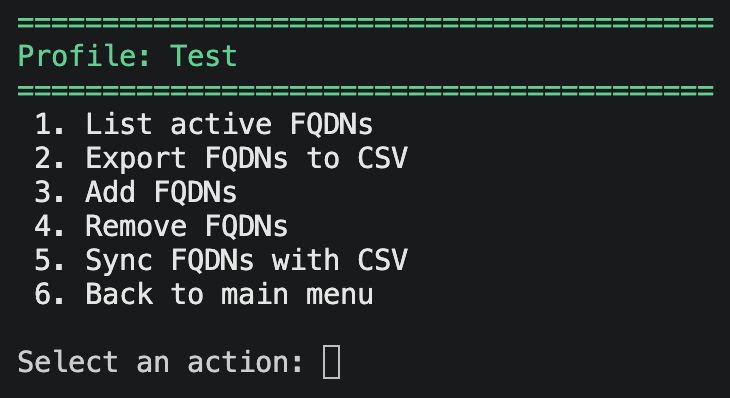 These actions are mostly self-explanatory, but export domains to CSV is helpful in grabbing the current state of the bound FQDNs prior to making changes.
Let’s step through the actions to update my Test Context Profile.
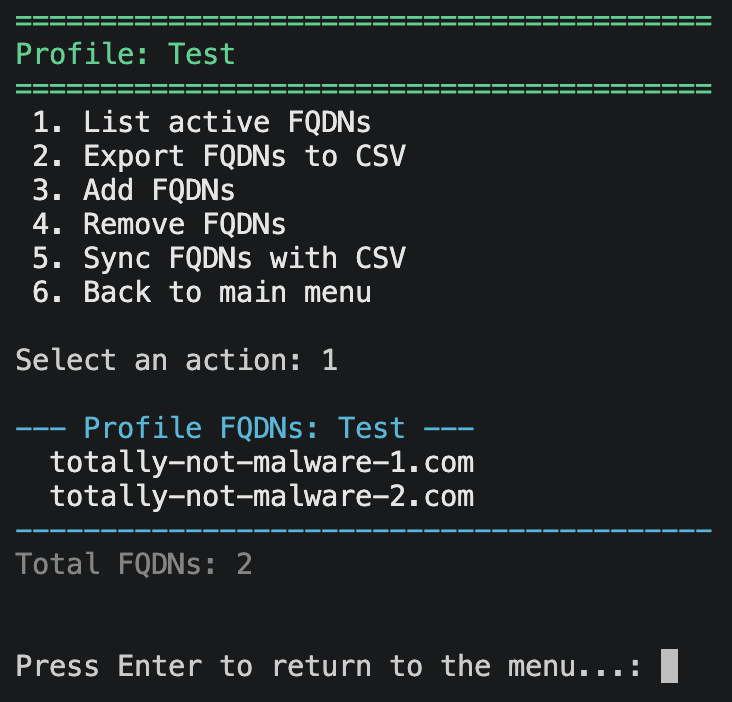
Here I list the profile’s active FQDNs to see the current state.
Next, I exported to CSV, removed one FQDN, and added two more nefarious FQDNs that haven’t yet been registered:
totally-not-malware-2.com
absolutely-totally-not-malware-1.com
absolutely-totally-not-malware-2.com
Lastly, I synced (a declarative action) the CSV to the Test Context Profile.
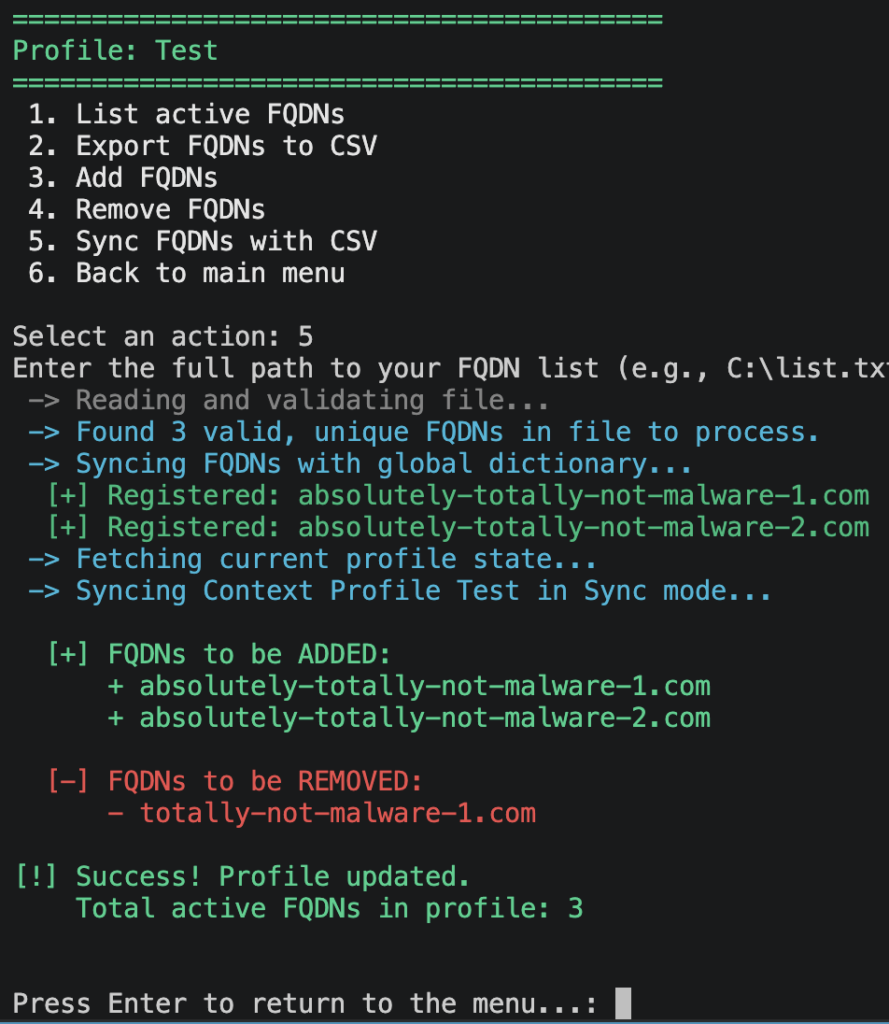
This is where PowerShell, PowerCLI, and Gemini combined make quick business of the bulk management complexities. Notice that the sync action did two steps:
- Attempted to register each FQDN and if it didn’t exist, great, add it. Otherwise, handle the
521029error mentioned above and move on. - Grabbed a list of FQDNs currently bound the Context Profile, bound the new domains, and removed the unneeded FQDN.
That’s it! We demonstrated how to manage FQDNs via the API, how to navigate its quirks with PowerShell, and how AI can increase your development productivity without sacrificing your own engineering knowledge.
You can grab a copy of this PowerShell script from my GitHub.